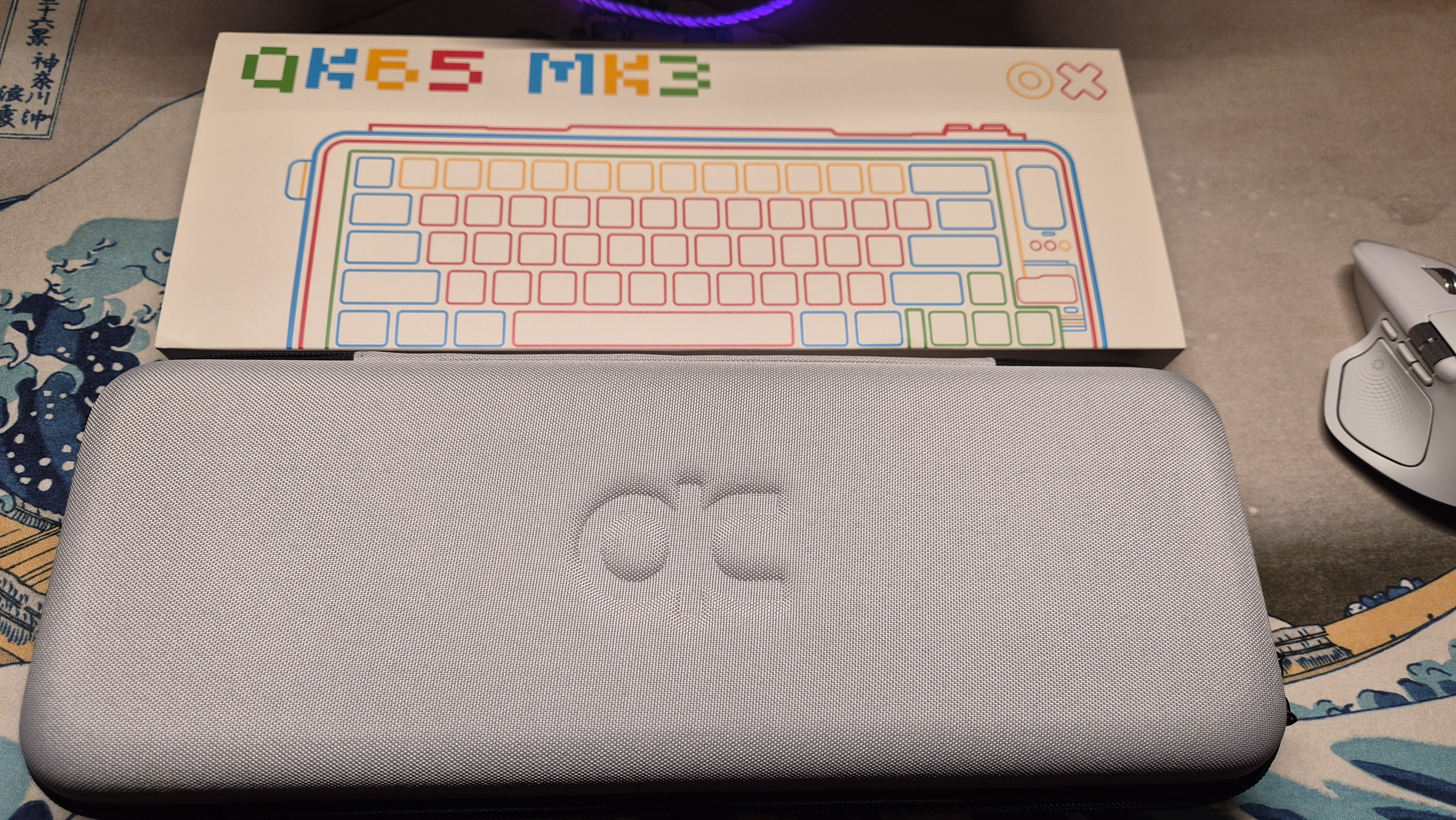
This user guide synthesizes the essential features and key shortcut combinations of QWERTYKEYS' 65% custom mechanical keyboard, the QK65 Mk3, helping users easily navigate controls, tri-mode pairing, and WebHID configurator settings. (※ For the full technical documentation, please consult the official manufacturer Notion manual linked below.)
🎛️ 1. Physical Control Knob & Mode Switching
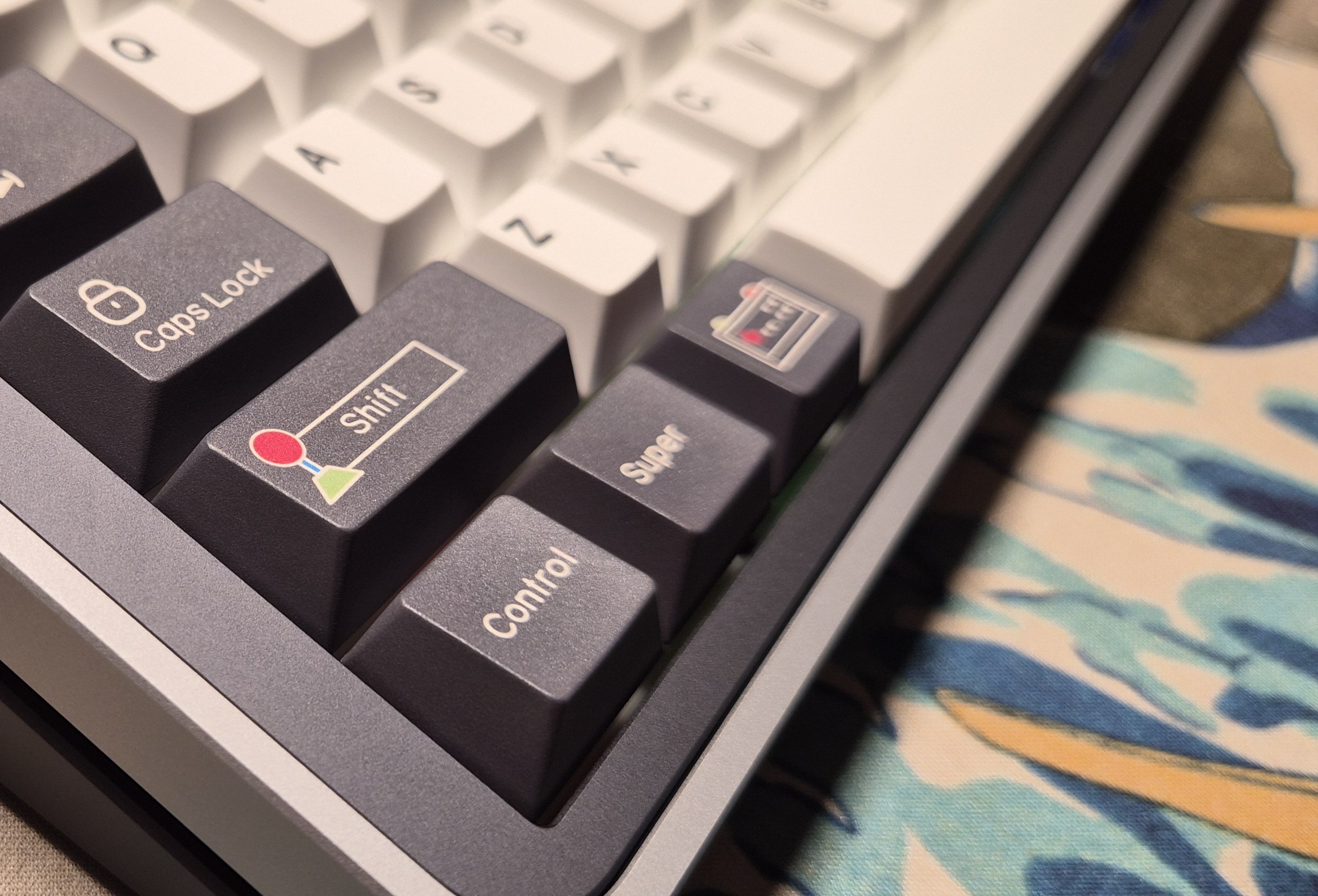
The QK65 Mk3 allows users to seamlessly switch connection modes and OS key layouts by rotating the physical control knob located in the top-right corner.
1-1. OS Layout Switching (Windows ↔ Mac)
- Turn knob to select either [Windows] or [Mac] layout option on screen.
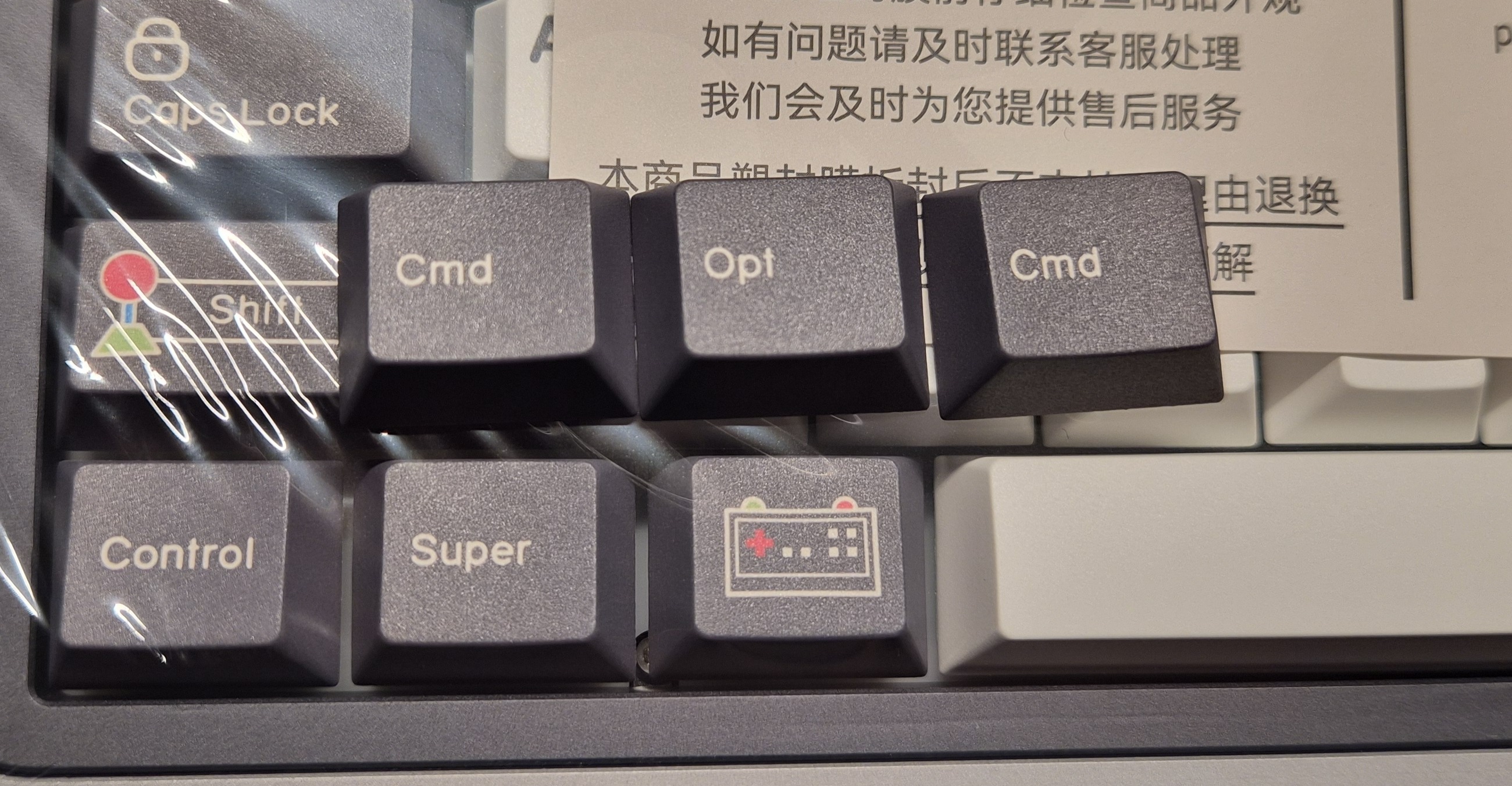
- Selecting Mac Mode: Swaps
Winkey toCmd(Command)andAltkey toOpt(Option)automatically.
1-2. Connection Mode Selection (Wired / 2.4G / Bluetooth)
- Turn knob to choose your preferred connection mode on display:
- 🔌 Wired: USB C-type cable mode
- 📡 2.4G: 2.4GHz wireless USB receiver dongle mode
- 📶 Bluetooth: Multi-device Bluetooth 1/2/3 mode
📡 2. Tri-Mode Connection Guide
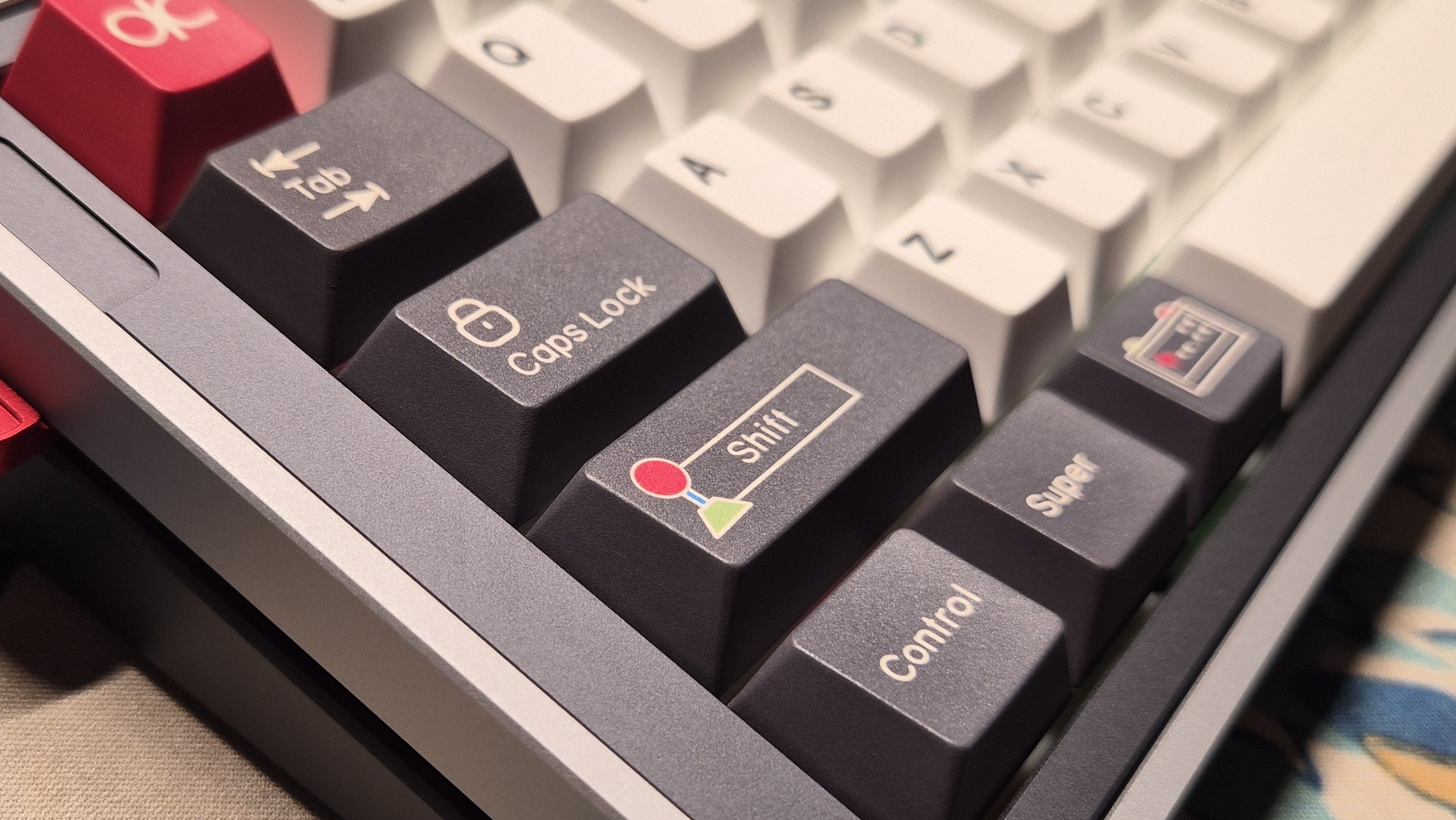
🔌 Wired Mode
- Connect USB Type-C cable to the keyboard top C-port.
- Turn physical knob to select [Wired] mode.
📡 2.4GHz Wireless Mode
- Plug the 2.4G USB receiver dongle into your PC/Mac.
- Rotate knob to select [2.4G] mode for instant pairing.
📶 Bluetooth Pairing (Bluetooth 1 / 2 / 3)
- Rotate knob to select [Bluetooth] mode.
- Press and hold
Fn+Q(Device 1) /Fn+W(Device 2) /Fn+E(Device 3) for 3 seconds. - When LED flashes, select [QK65 Mk3] on your device to pair.
⌨️ 3. QK65 Mk3 Fn Shortcut Table & Quick Guide
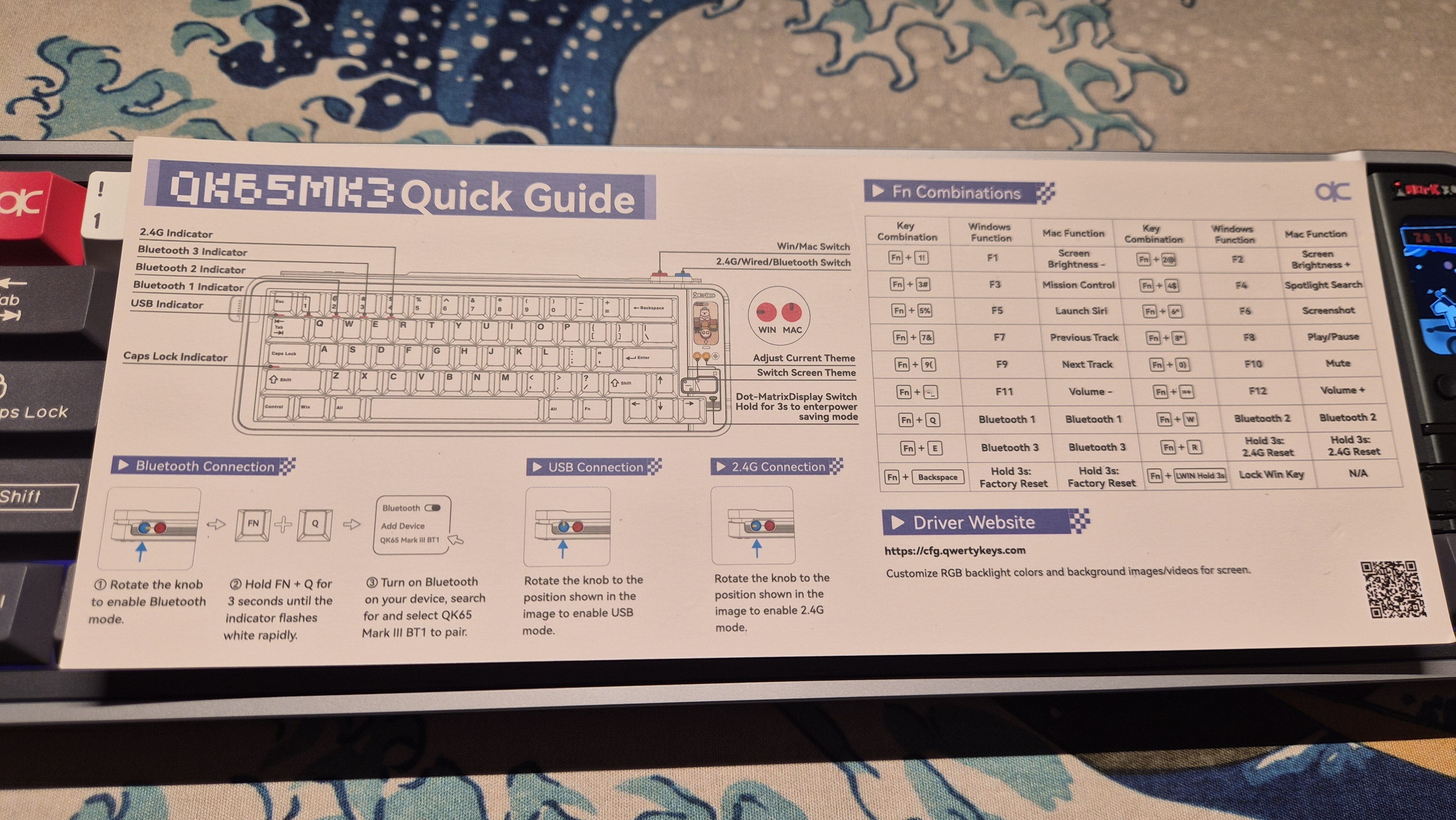
| Key Combo | Function & Action Description |
|---|---|
Hold Knob (3 sec) (or Fn+Backspace) |
Top-right Smart Display Screen ON / OFF |
Fn + Win |
Windows Key Lock / Unlock (Gaming Protection) |
Fn + Space |
Master RGB Backlight ON / OFF (Battery Saving) |
Fn + Z |
Bottom/Side Matrix LED Strip ON / OFF |
Fn + X / C |
Cycle RGB Pattern Modes (Previous / Next Effect) |
Fn + V / B |
Cycle RGB Colors (Previous / Next Solid Color) |
Fn + < / > |
RGB Brightness Control (Decrease / Increase) |
Fn + ▲ / ▼ |
RGB Animation Speed Control (Slower / Faster) |
Fn + ESC (Hold 3 sec) |
Factory Reset: Restores keymaps and settings to factory defaults |
💻 4. Web Configurator (cfg.qwertykeys.com) Guide
Configure keyboard settings directly via Chrome or Edge browser without installing any software.
4-1. Device Access & Clock Synchronization
- Connect C-cable and turn knob to select [Wired] mode.
- Open Chrome, go to cfg.qwertykeys.com, and click [Connect].
- Navigate to ⚙️ Settings ➔ [Date & Time], click
[Sync Time]at top-right to sync PC system clock.
4-2. Custom GIF & Video Upload Tips (172 x 320 px)
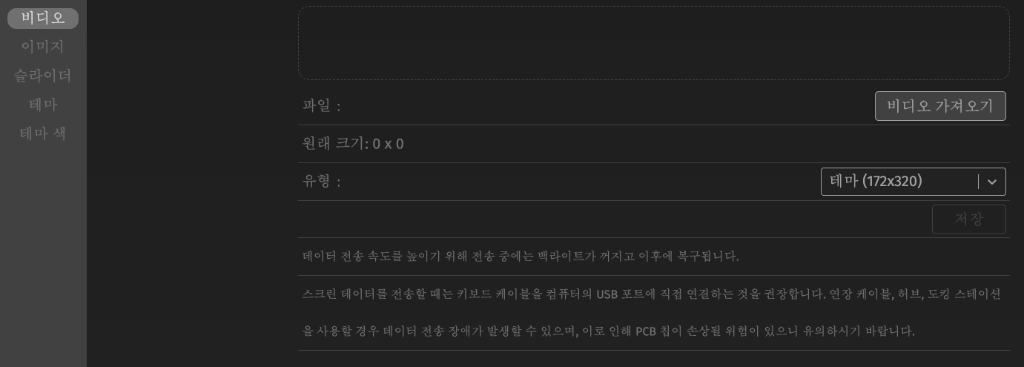
⚠️ Direct USB Connection Required for Screen Data Transfer:
Please connect the cable directly to a PC USB port rather than extension hubs to prevent data transfer errors or PCB chip damage.
❓ 5. Frequently Asked Questions (FAQ)
Q: Display turned off suddenly. How do I turn it back on?
👉 Long press the top-right physical control knob for 3 seconds to turn the screen ON/OFF. You can also adjust the Sleep Timeout under [Screen] in cfg.qwertykeys.com.
Q: How do I perform a Factory Reset?
👉 Press and hold Fn + ESC for 3 seconds until the LEDs flash.
🔗 Official Links:
• Official QWERTYKEYS QK65 Mk3 Notion Manual
• Official Web Configurator (cfg.qwertykeys.com)